NL Dutch
FR French
IT Italian
DE German
US English (US)
ES Spanish
menu

Contact Us

No results found. Still need help? Contact us

  • Scheduled Assistance
  • Contact Us
English (US)
NL Dutch
FR French
IT Italian
DE German
US English (US)
ES Spanish
arrow_back
  • DateCodeGenie
  • RightBytes
  • Task Manager
  • Scheduled Assistance
  • Contact Us

Home Page in InsightsLite V2

Contact Us

If you still have questions or prefer to get help directly from an agent, please submit a request.
We’ll get back to you as soon as possible.

  • EatSuite
  • InsightsAI
    Getting Started with InsightsAI Reports InsightsAI Equipment
  • InsightsLite
    Execution Catalog Management Reports InsightsLite V2
  • StockSmart
    Orders Inventory Stock Management Reporting Quick Actions StockSmart Printing
  • WasteTracking
  • Equipment
    LoRaWAN Gateway LoRaWAN Traffic Counter Foorir Traffic Counters Order Hub
+ More
  • Home
  • RightBytes
  • InsightsLite
  • InsightsLite V2

Table of Contents

Page View Options Filters

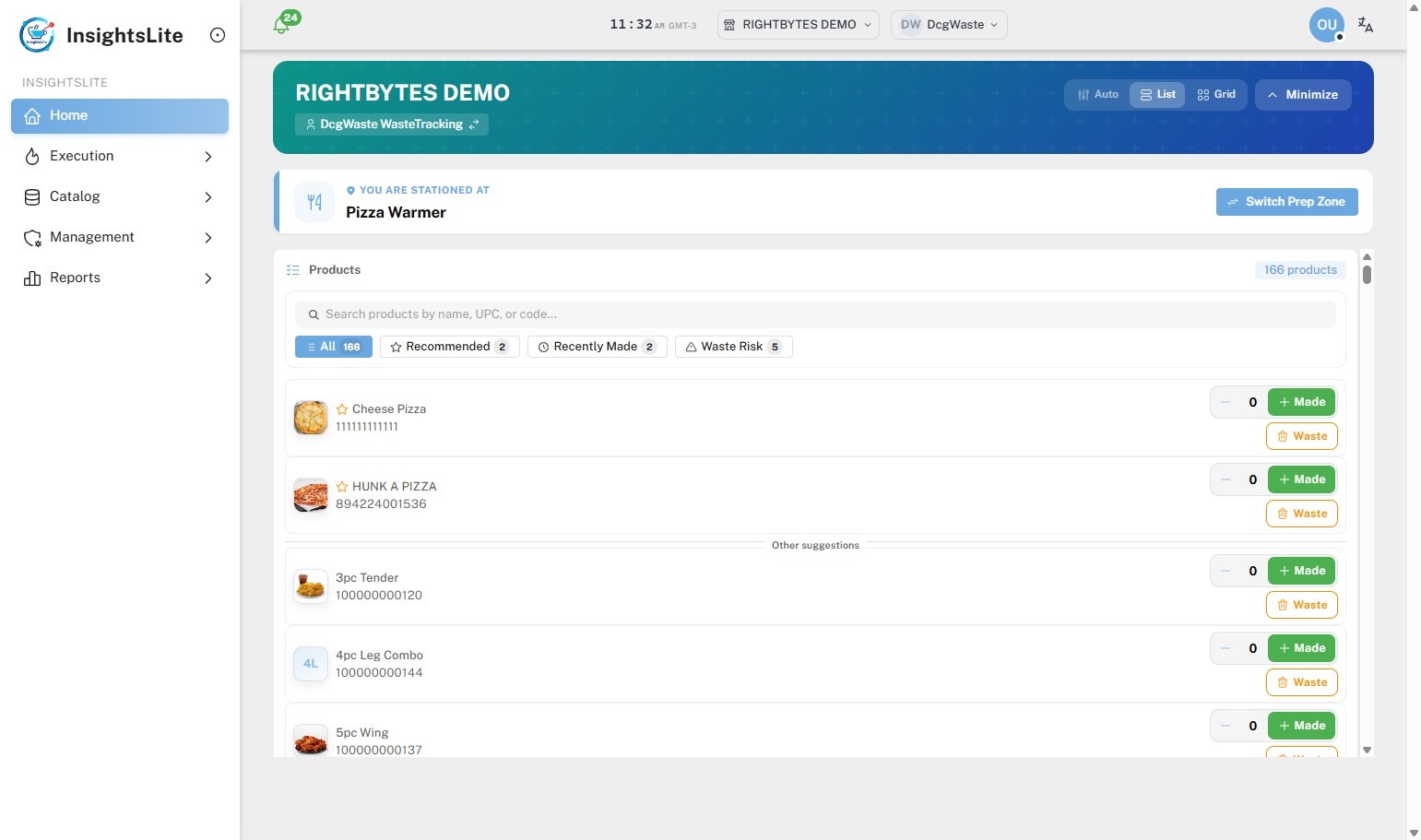
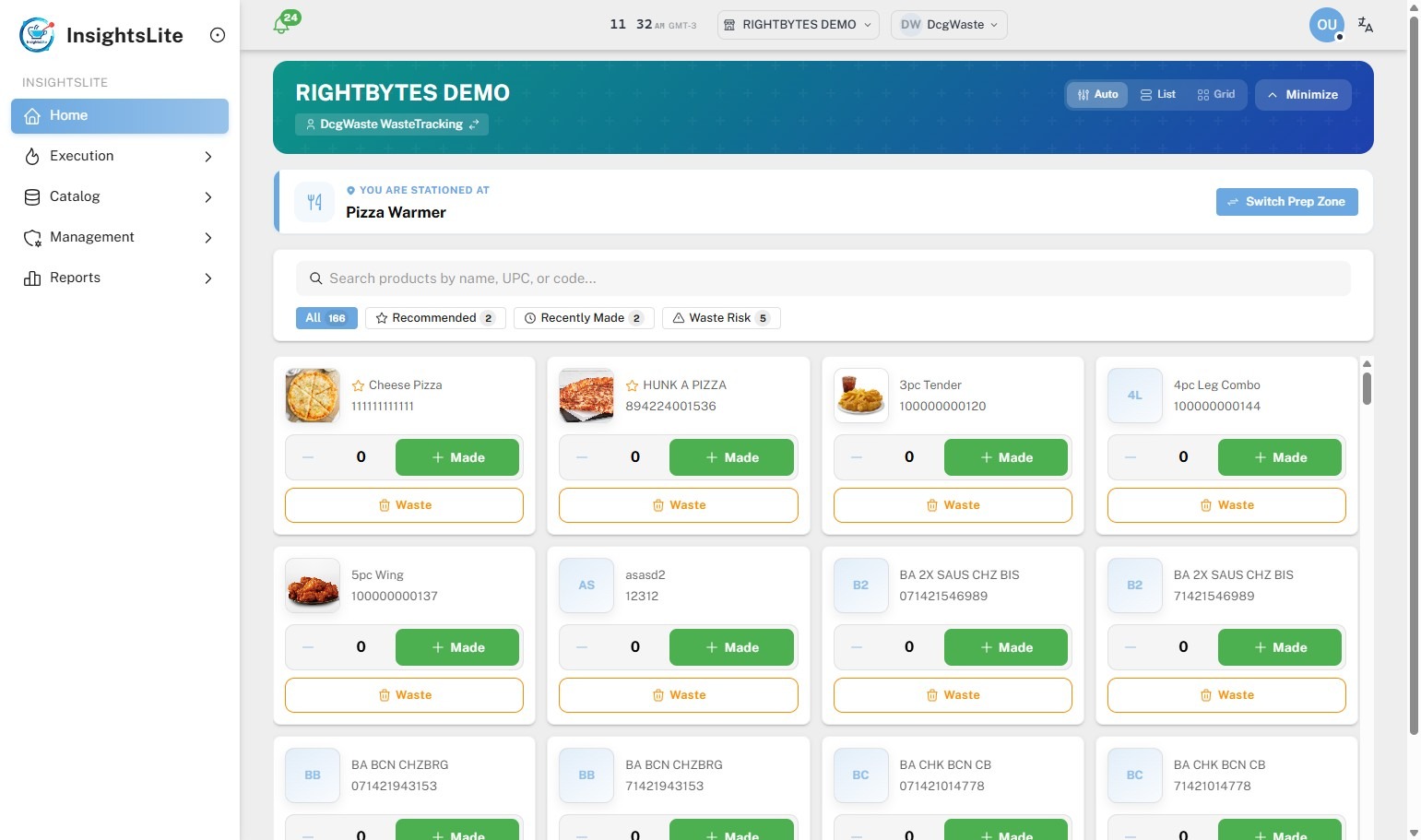
The InsightsLite Home page is the central hub where staff can record made and wasted products.

All staff can access and use the home page.

Page View Options

Use the view toggle to switch between list and grid product views.

List View (default for EatSuite app)

Grid View (default for web browser)


Filters

Type to search a product, or click one of the filters.

  • All: Every product available.
  • Recommended: Products CompassAI recommends making right now.
  • Recently Made: Products made just a while ago.
  • Waste Risk: Products with batches expiring within 30 minutes or recently wasted.


Steps:

1. Click Switch Prep Zone to set your current prep zone.

2. Select your current prep zone from the list.

3. Click + Made for each product being made.

4. Click Waste next to any products being wasted.

5. Type the Waste Quantity for that product.

6. Select the Waste Reason from the dropdown.

7. OPTIONAL: Type an additional Quick Reason and Note to add more details.

8. Click Add Waste.

9. Click Review & Submit when finished.

10. Review all made and waste products, then click Submit Now.

Related Articles

  • Manage Categories in InsightsLite
  • Manage Categories in InsightsLite V2
  • Manage Products in InsightsLite V2

Was this article helpful?

Yes
No
Give feedback about this article For additional assistance, see Contact & Support

Related Articles

  • Manage Categories in InsightsLite
  • Manage Categories in InsightsLite V2
  • Manage Products in InsightsLite V2
© 2026 DateCodeGenie

899 Montreal Circle, St. Paul, MN 55102

Privacy Policy

Learn more about our product
contact us
About NCCO

Knowledge Base Software powered by Helpjuice

Expand