Edit Quick Actions in StockSmart
Table of Contents
Rearrange the quick actions menu to make it easier for staff to find what they need.
Steps:
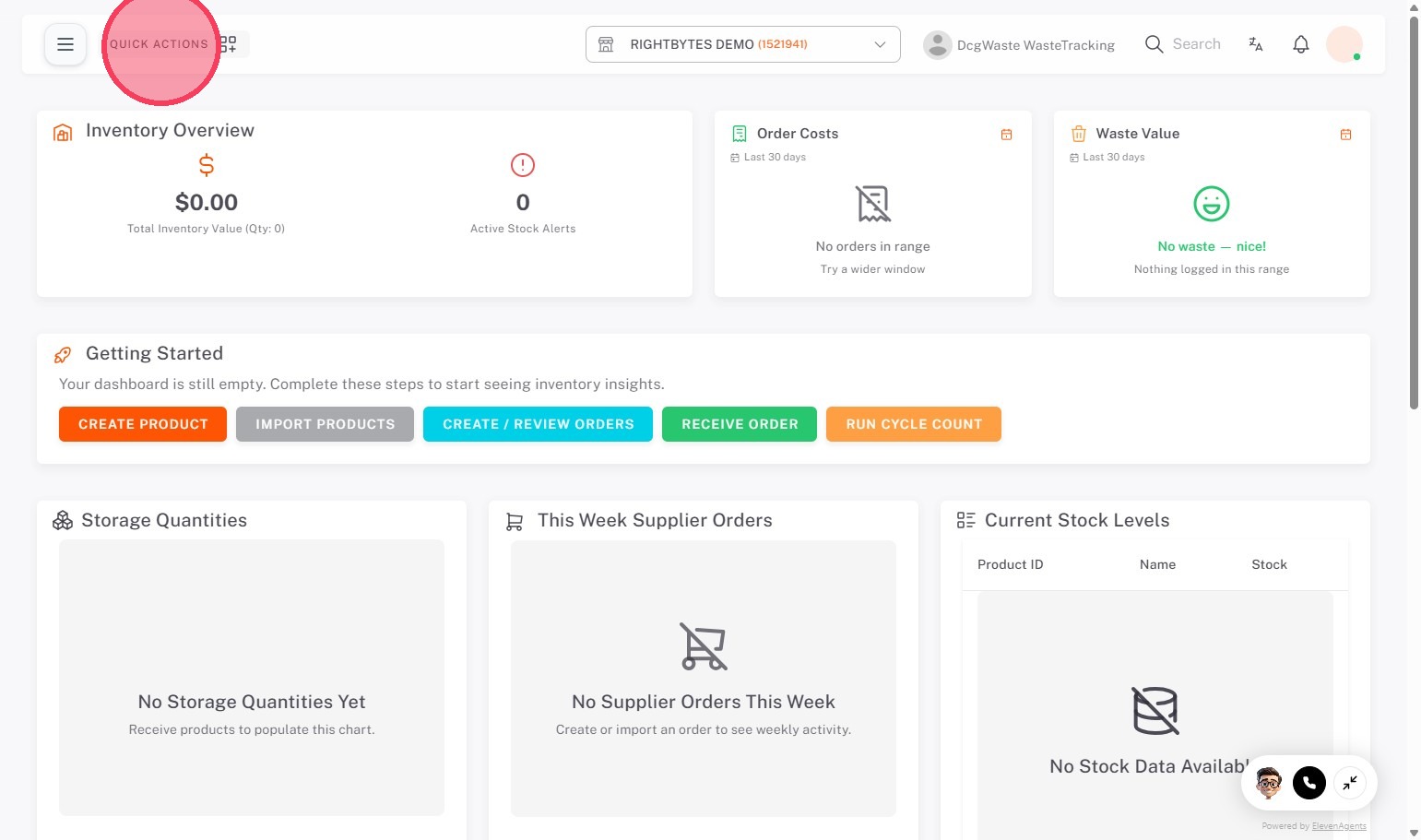
1. Click QUICK ACTIONS.
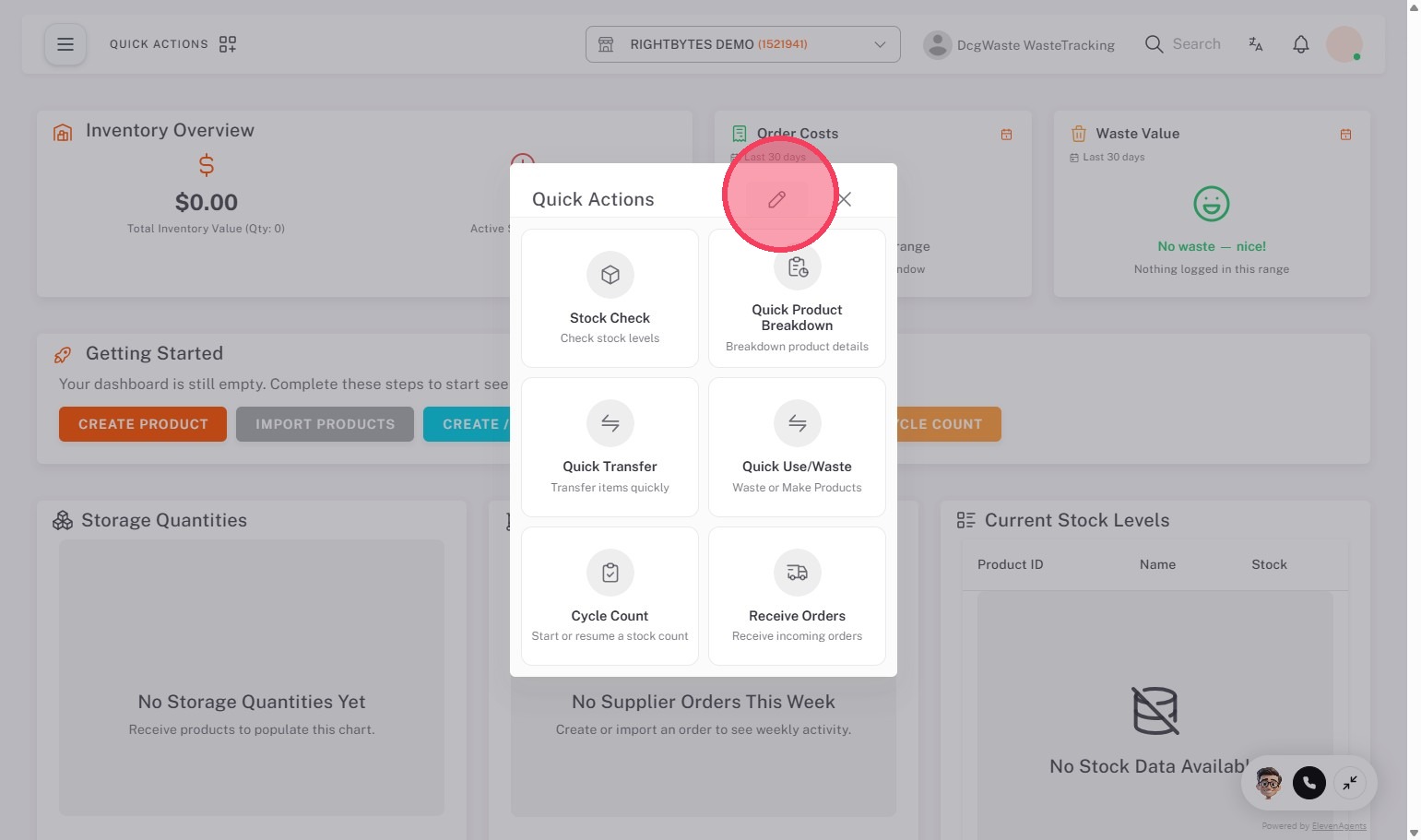
2. Click the edit button (pencil icon).
3. Click the drag handle (six dot icon), then move the quick action to the desired spot in the menu.
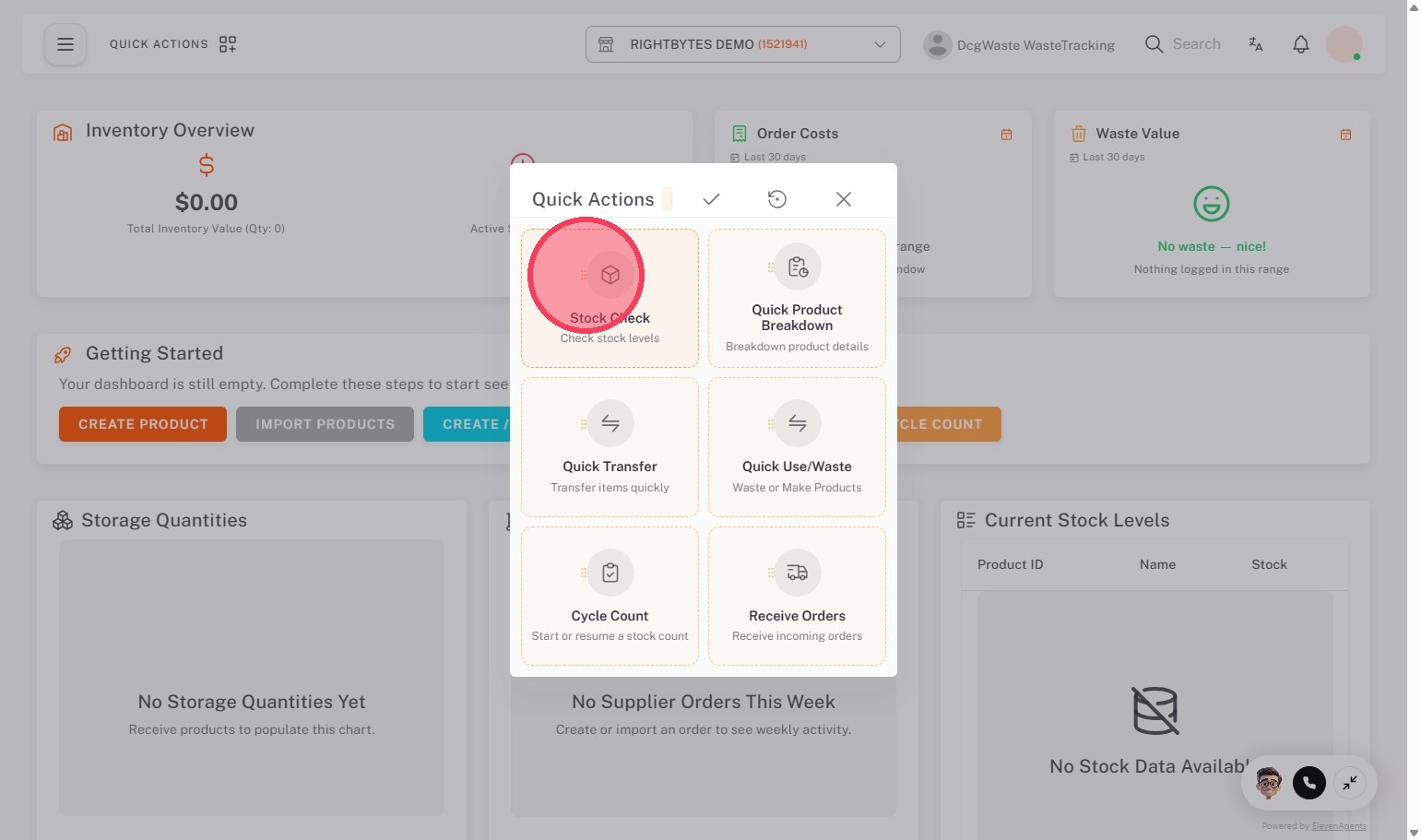
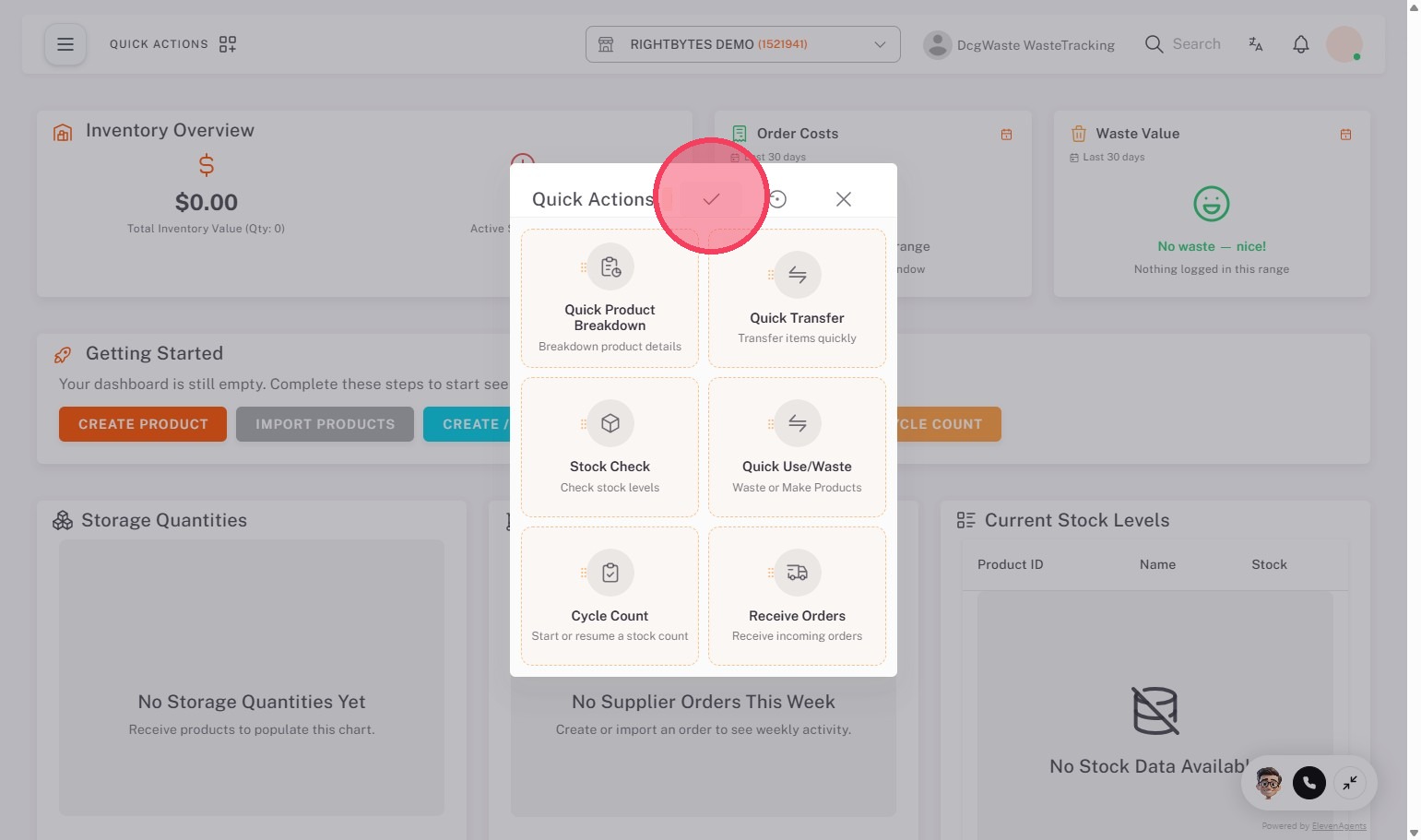
4. Click the save button (check mark icon) when finished.
NOTE
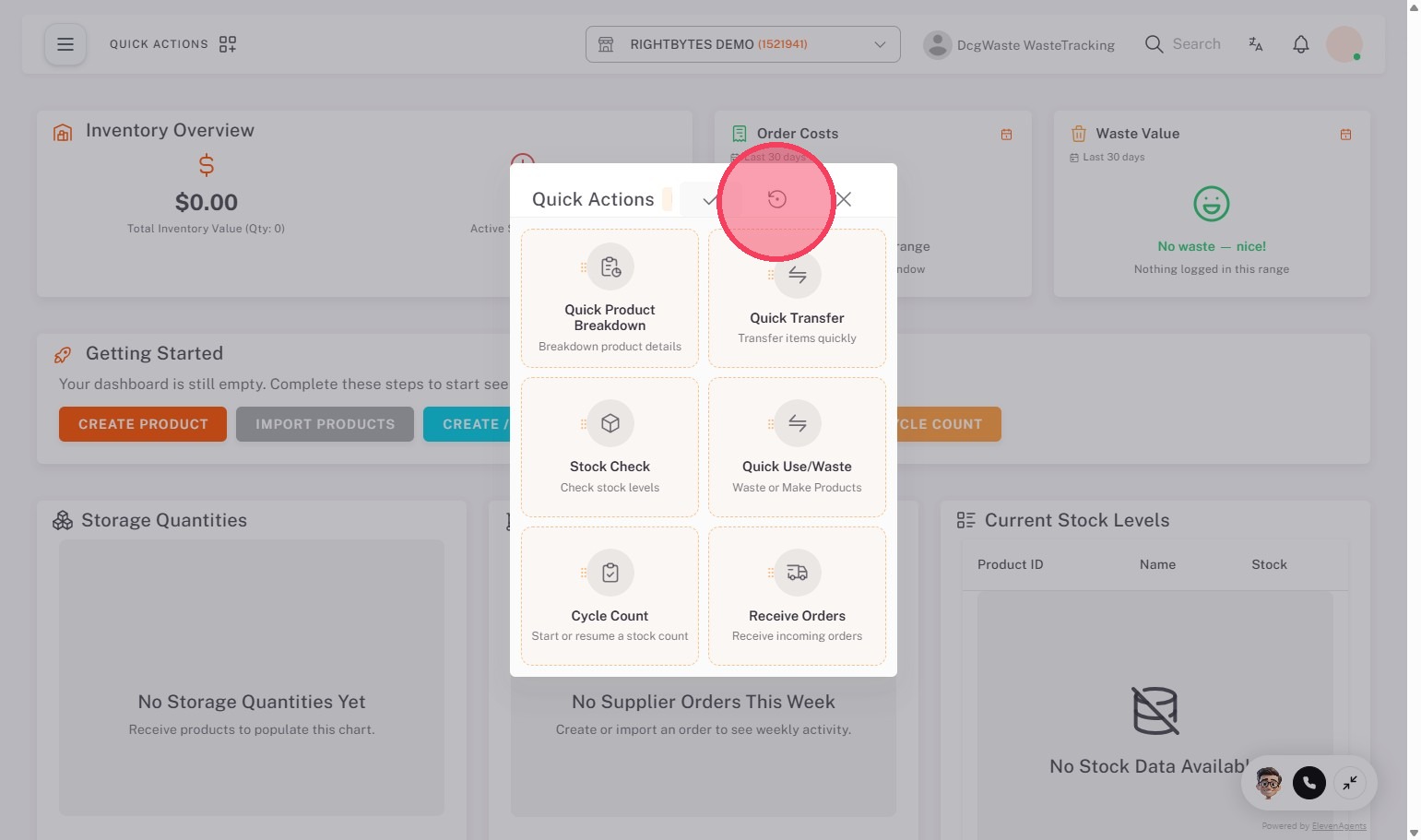
Change the quick action menu back to default by clicking the reset to defaults button (circle arrow icon) while editing.