
Print a Quick Label on the App
Table of Contents
Using quick labels allows staff to instantly print individual labels for common items without navigating through the app.
Steps:
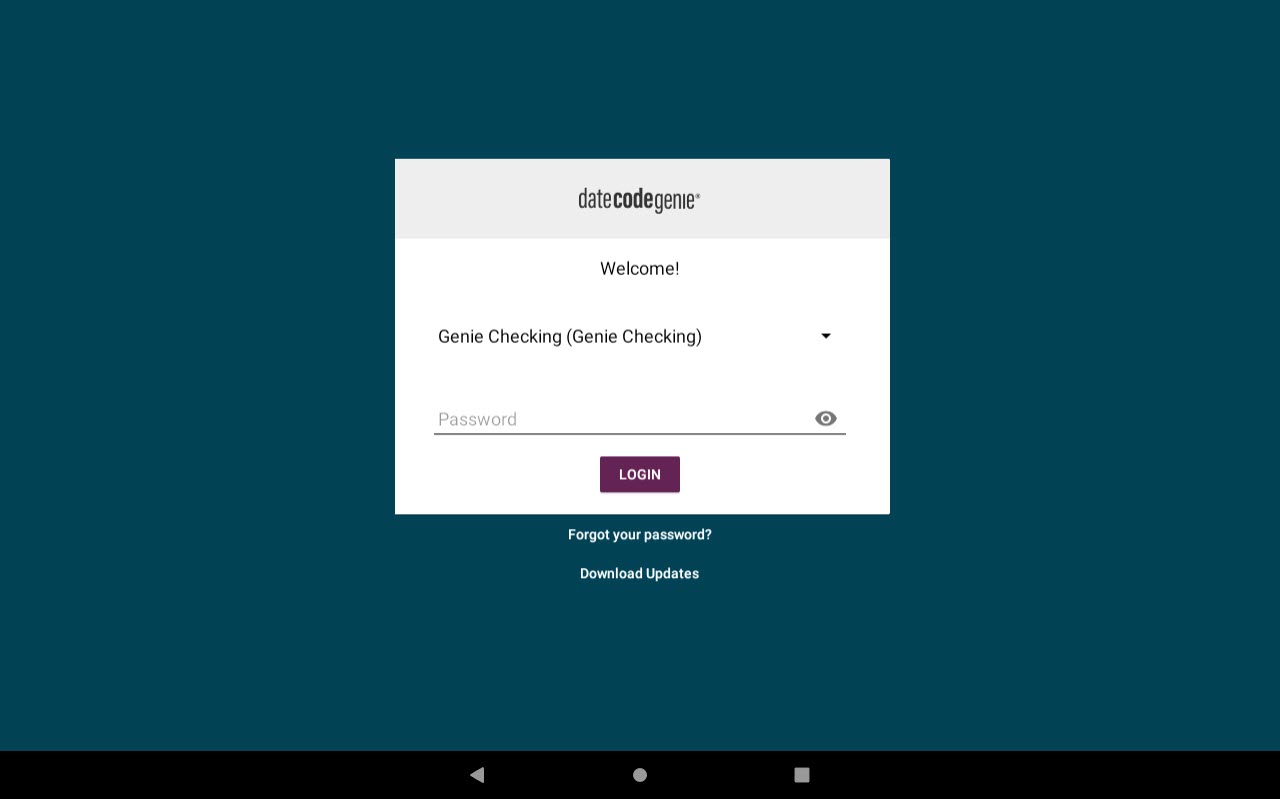
1. Log in to the app with your username and password, if required.
2. Tap the Quick Labels button.

3. Tap the quick label needed or create a new custom label, see Create New Custom Label on the App

4. Enter the number of copies needed in the Print Copies box.

5. OPTIONAL: Tap the hold button (lock icon) to automatically print labels.

6. Tap the print button (printer icon) to print labels.
NOTE
To select another quick label, tap the dropdown to view list.


