US English (US)
FR French
DE German
ES Spanish
IT Italian
NL Dutch
menu

Contact Us

No results found. Still need help? Contact us

  • Scheduled Assistance
  • Contact Us
English (US)
US English (US)
FR French
DE German
ES Spanish
IT Italian
NL Dutch
arrow_back
  • DateCodeGenie
  • RightBytes
  • Task Manager
  • Scheduled Assistance
  • Contact Us

Add Faves on the App

Contact Us

If you still have questions or prefer to get help directly from an agent, please submit a request.
We’ll get back to you as soon as possible.

  • Getting Started
    Getting Started Guides Set Up Training
  • Devices
    Troubleshooting Device Overview 2.0 Model X Series Model Fit Model Lite Model mC-Label3 Printer CL-S700III Printer Device Tablet Internet Connection Warranty & Support
  • App
    Error Codes Troubleshooting App Overview Mobile App Subscription Prep Lists Quick Labels Print History Product Control Location Overrides Temperature Probe Rosters Scale Language Settings
  • Portal
    Portal Overview Locations Groups Users Rosters Categories Menu Items Printer Profiles Quick Labels Prep List Print History Product Control Temperature Probe Mass Import and Export Settings Media Library Support Location Overrides Scale
  • Admin Settings
    Start with Admin Settings Admin Settings Overview Locations Devices and Licenses
  • Accessories
    Bluetooth Scanner USB Scanner Temperature Probe Scale Label Rewinder Fit Printer Shelf Warranty
  • Labels
    Overview Troubleshooting
  • Repairs
    2.0 Model X Series Model Lite Model DateCodeGenie® Tablet
  • APIs
    Inbound APIs Outbound APIs
+ More
  • Home
  • DateCodeGenie
  • App
  • App Overview

Table of Contents

WARNING NOTE

Faves is a button in the app that lets you quickly access your favorite menu items to print labels faster.

This is helpful for:

  • Fast access to frequently ordered menu items
  • Keeping favorite menu items in one place
  • Improving efficiency and convenience when selecting menu items

WARNING

Faves are not saved to the portal. Clearing app data, resetting the tablet, or a broken tablet will remove all previously added Faves.


Steps:

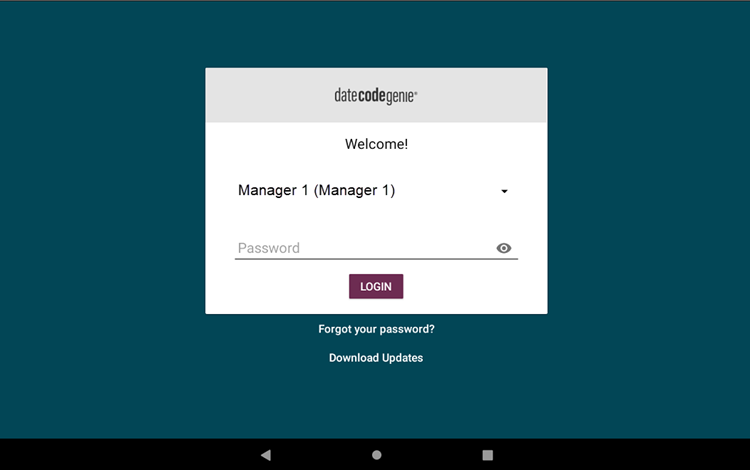
1.  Log in to the app with your username and password, if required.
2. Tap the category button or use the search button to find a menu item or quick label, see Use the Search Button on the App

3. Tap the menu item options.

4. Tap Add to Faves.

5. Tap the Faves button.

6. The menu item selected to be added will appear on the Faves screen.

NOTE

To remove a menu item, tap the menu item options and select Remove from Faves.


7. Continue to print.

Related Articles

  • Understanding the DateCodeGenie® App Dashboard
  • Red Triangle and Circle Icon on the App

Was this article helpful?

Yes
No
Give feedback about this article For additional assistance, see Contact & Support

Related Articles

  • Understanding the DateCodeGenie® App Dashboard
  • Red Triangle and Circle Icon on the App
© 2026 DateCodeGenie

899 Montreal Circle, St. Paul, MN 55102

Privacy Policy

Learn more about our product
contact us
About NCCO

Knowledge Base Software powered by Helpjuice

Expand
