
Logo is Not Printing on the Label
Table of Contents
The logo displays in the print preview on the app, but does not print on the label, either because the Preprinted Logo feature is turned on or no default logo is set for the location in the portal.
Turn off Preprinted Logo feature
1. Log in to the portal at www.datecodegenie.com using the recommended browser. See Supported Internet Browser for Portal Access
2. Click the Printer Profiles tab on the side bar.

3. Click the edit button (pencil icon) for the printer profile with the missing logo.

4. Click the Layout Designer button.

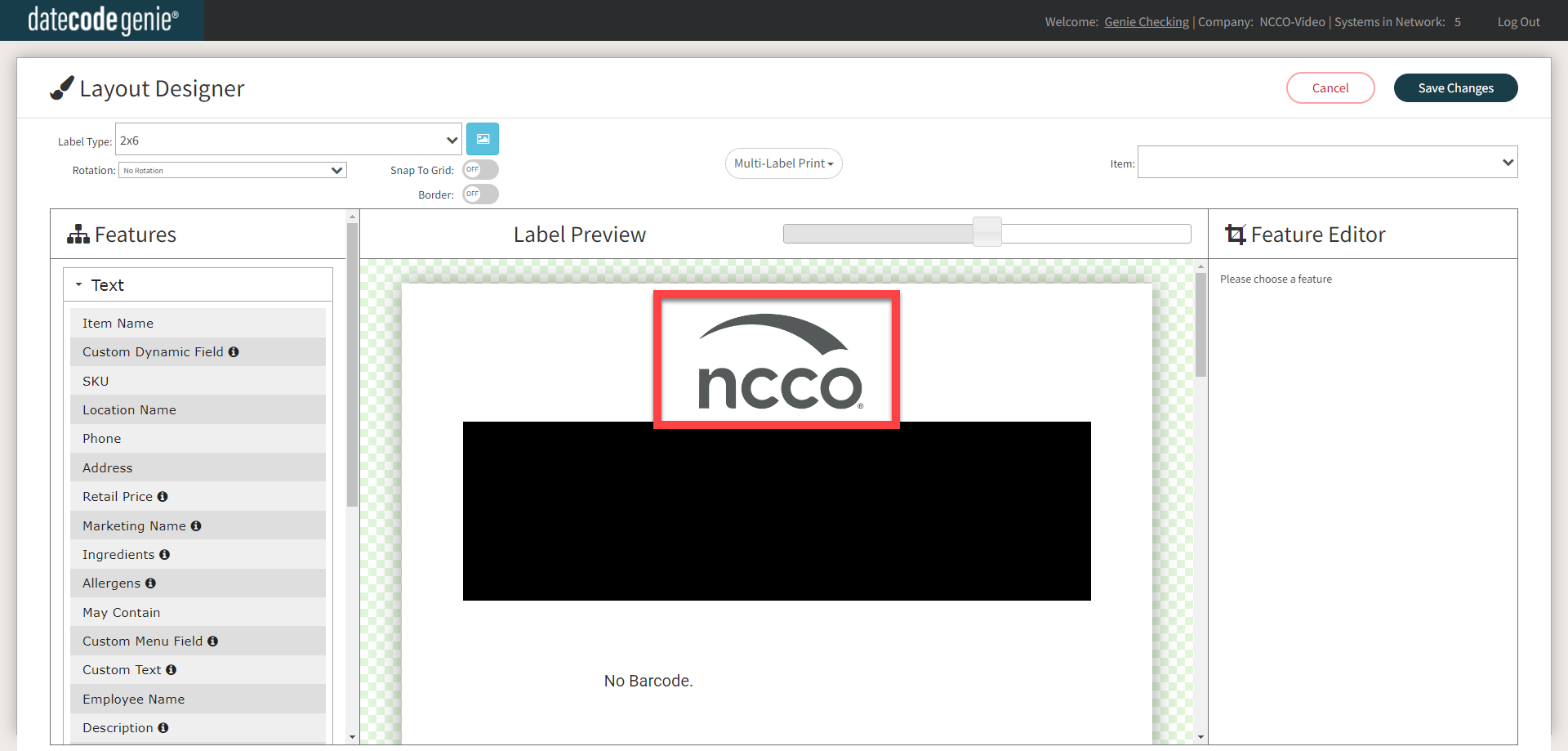
5. Click on the logo feature from the Label Preview to display settings in the Feature Editor.
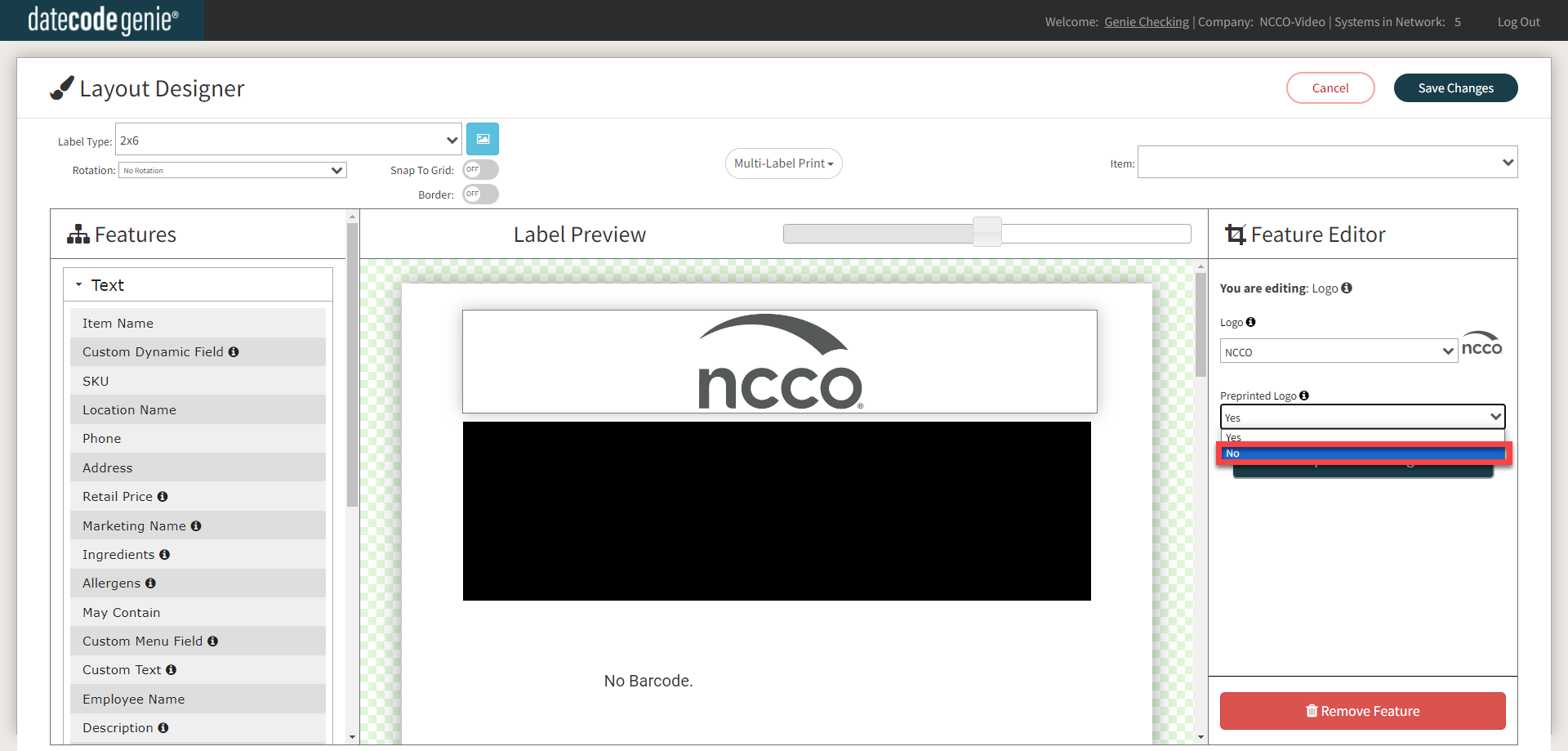
6. Click the Preprinted Logo dropdown and click No.
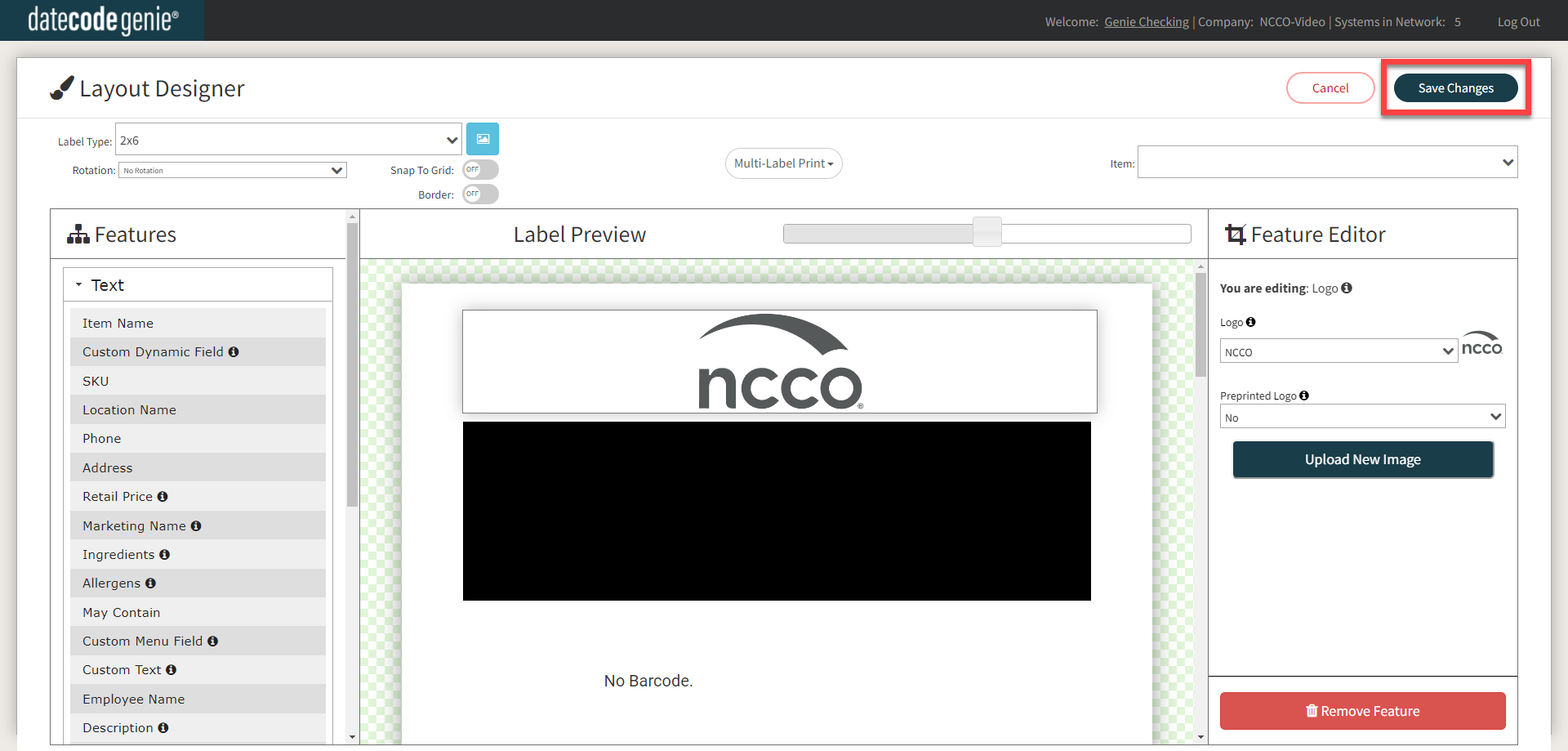
7. Click the Save Changes button.
Set a default logo for the location
1. Go to the Settings tab.
2. Click the Logos tab.

3. Click the Set as Default checkbox next to a logo to set it as the default for that location.
NOTES
- Each location can have a different default logo.
- Only one logo can be set as the default per location.

A successful updated logo confirmation pop-up message will appear.

TIP & TRICK
Need to upload a logo first? If you have not uploaded your logos to the portal yet, see Add a Logo before trying to set a default.
4. Return to the app and test print.
NOTE
If the logo still does not print, ensure the Preprinted Logo feature is turned off in the accordion above.

