
Frozen/Looping Update
Table of Contents
The DateCodeGenie® app is frozen or shows a spinning update wheel on the tablet.
Frozen/Looping Update Troubleshooting
Are you using an integrated printer device, or your own tablet with the mobile app subscription?
1. Verify if the tablet screen is frozen, or just the app.
Try to tap out of the app by hitting any of the buttons on the tablet navigation bar below. If unresponsive, then the tablet is frozen.

2. Close out the DateCodeGenie app.
Steps:
1. Tap the app display button (square icon).

2. Hold the app and swipe left or right to close, which forces the DateCodeGenie application to quit.
NOTE
For some tablet models, users may close all apps by tapping Clear All, pressing the X on the app, or swiping up to close apps.

3. Reopen the app and try to log in again.
3. Verify internet connection status
Wi-Fi
Connect Device to Wi-Fi
Connecting your DateCodeGenie® device to Wi-Fi is easy and only takes minutes. Be sure your tablet is charged and turned on.
NOTES
- These steps are for DateCodeGenie® devices with integrated printers devices only. For mobile app users, refer to your tablet's manufacturer information for tablet setup assistance.
- Contact your company for correct network and password requirements.
- See Setting Up Specific or Hidden Wi-Fi to connect to hidden networks.
Steps:
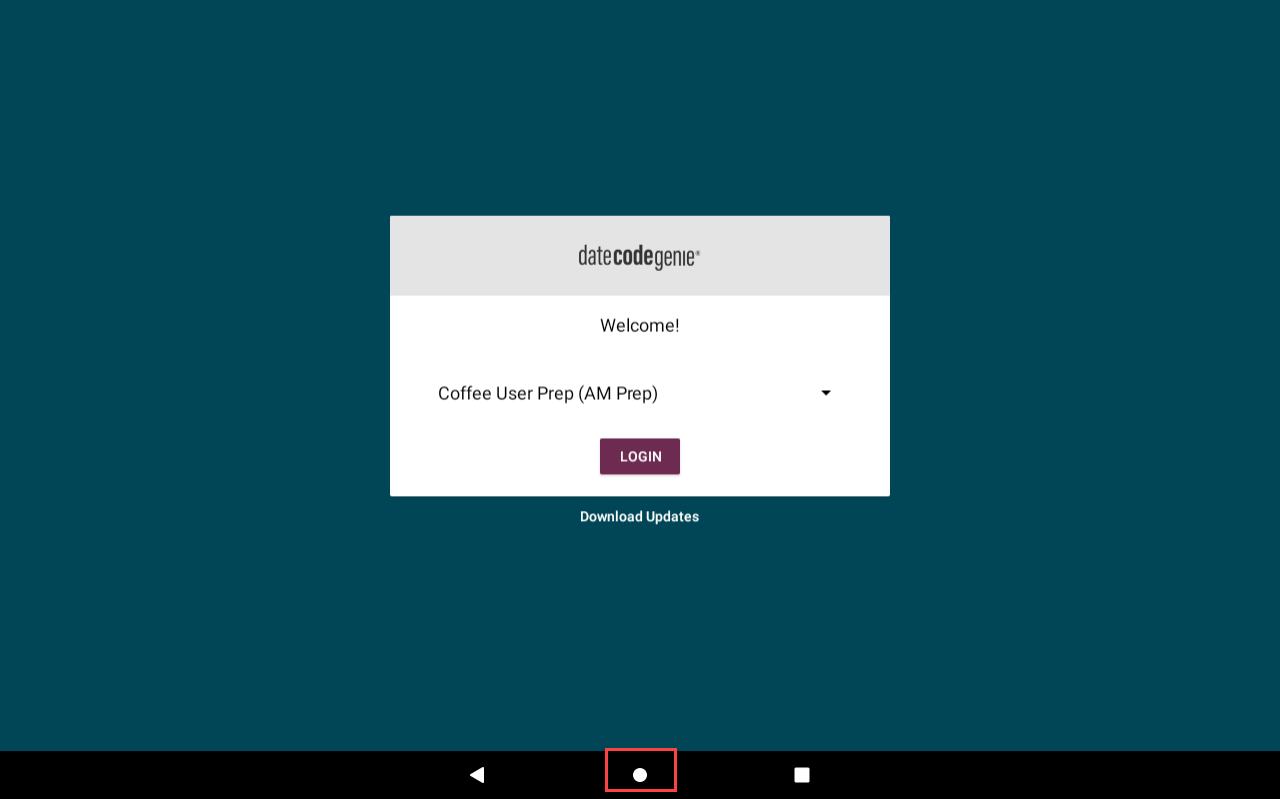
1. Tap the home button (circle icon or house icon) at the bottom of the tablet to return to the tablet home screen.
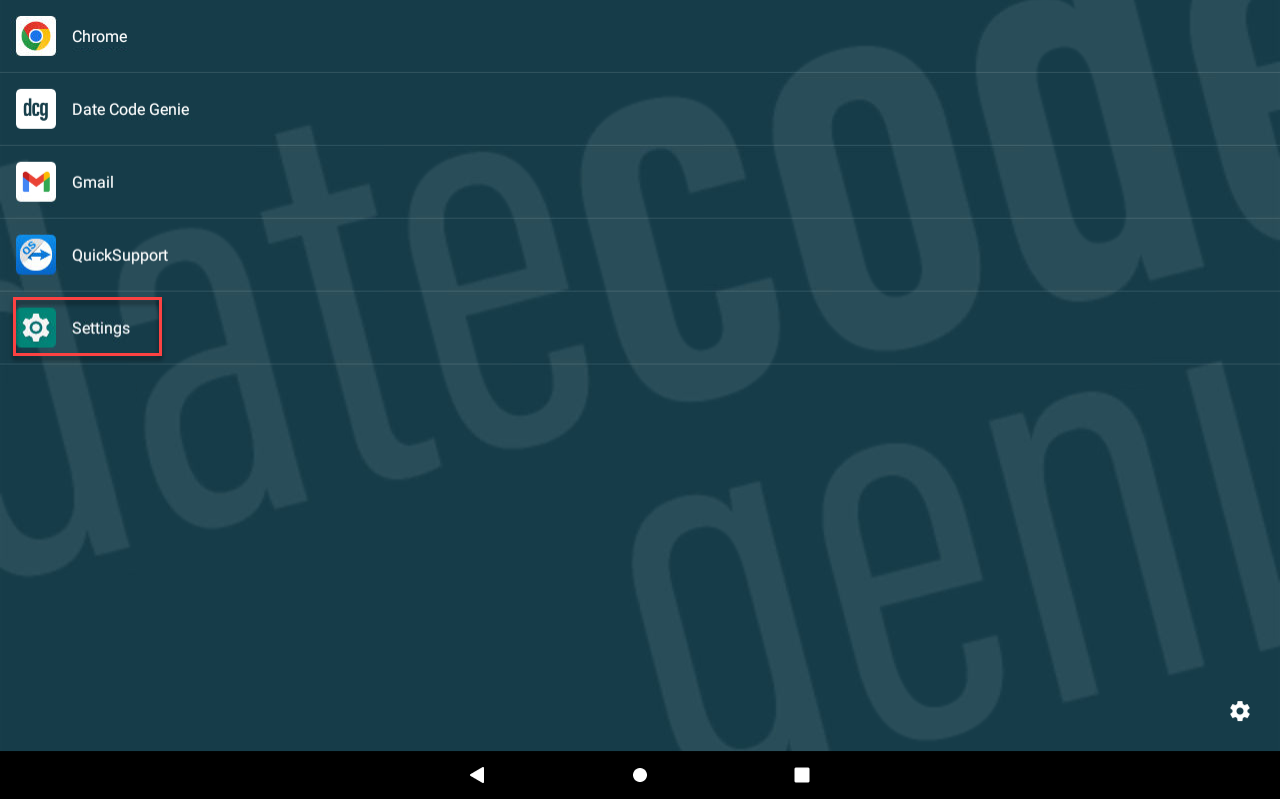
2. Tap Settings.
NOTE
If Settings does not display on the app list, see Using KioskHome for Tablet Access
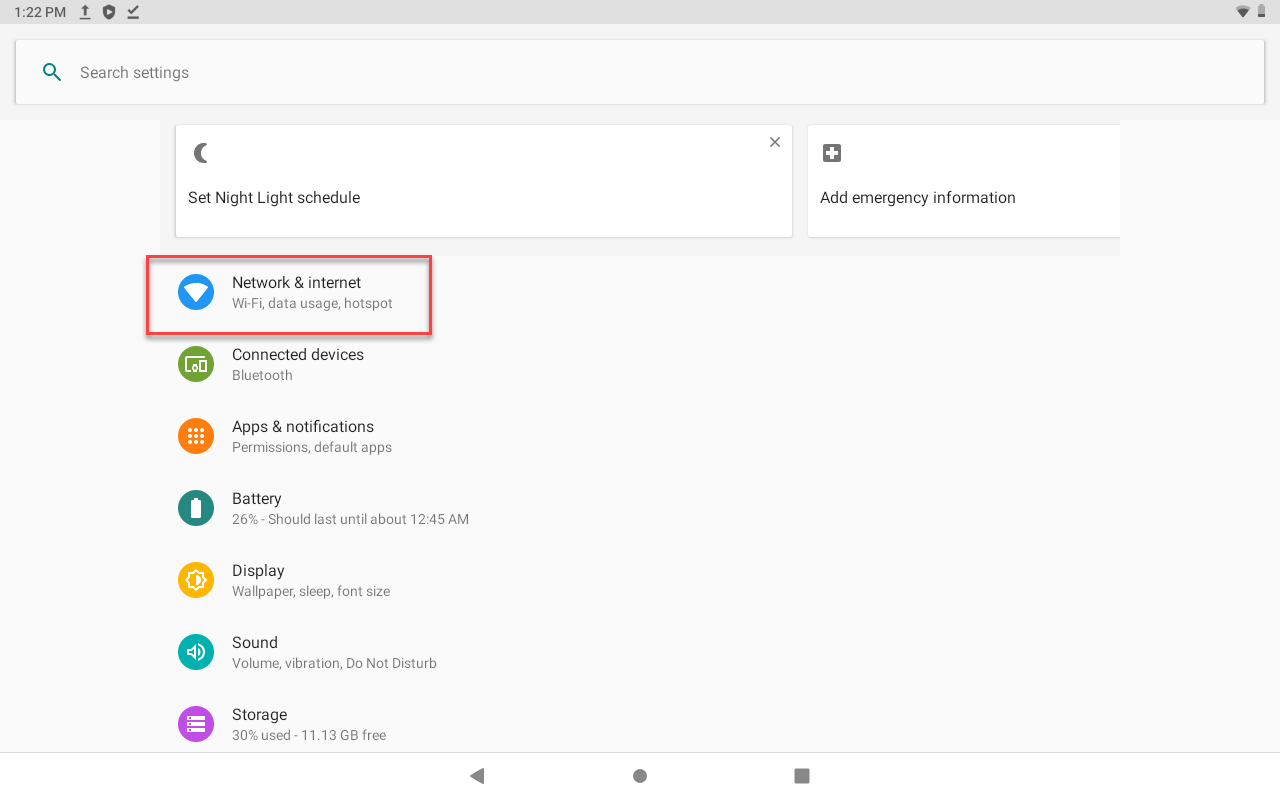
3. Tap Network & Internet.
4. Tap the Wi-Fi toggle to turn green.
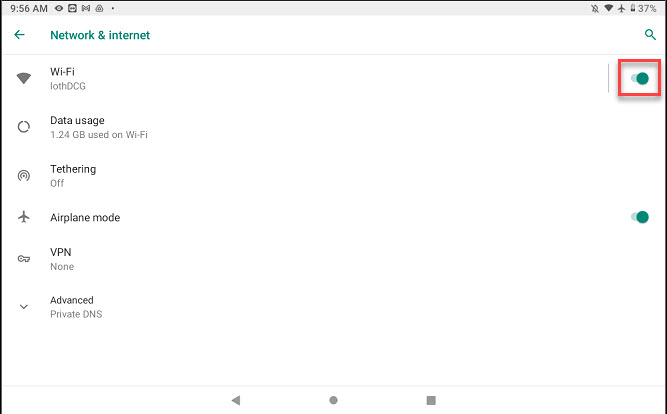
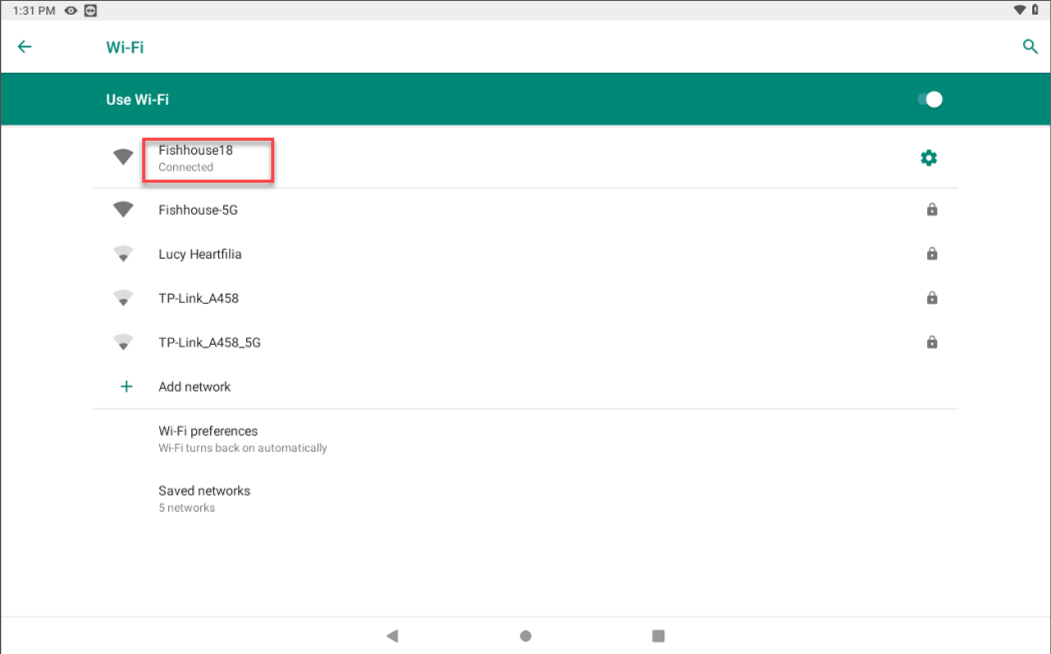
5. Tap Wi-Fi to display the network list and select your network.
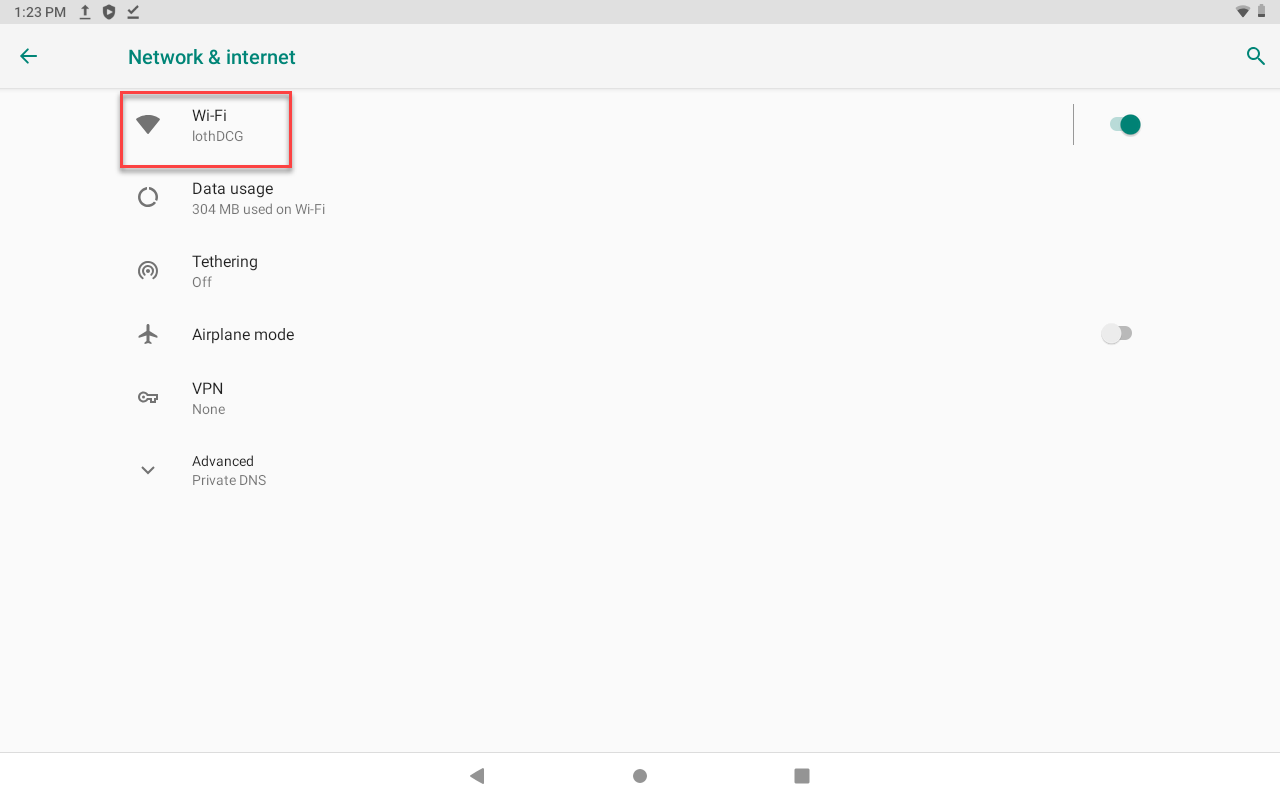
6. Connected will display when successfully connected. Tap the home button to return to the home screen.
NOTE
Not connecting to Wi-Fi? See Incorrect Date and Time or Wi-Fi Authentication for Guest or Public Networks. Contact your company for assistance with connection to your network.
Ethernet
Connect Device to Ethernet
NOTE
This article is for DateCodeGenie® devices with integrated printers or Lite model device tablets only. For mobile app users, refer to your tablet's manufacturer information for tablet setup assistance.
Connecting your device to Ethernet is very easy and only takes minutes. Be sure your tablet is charged and turned on before connecting.
WARNING
X Series model devices were manufactured with a USB port on the back. Please confirm your device does indeed have the USB port. See X Series Model Device, step 1.
Required Model Devices:
X Series Model Device
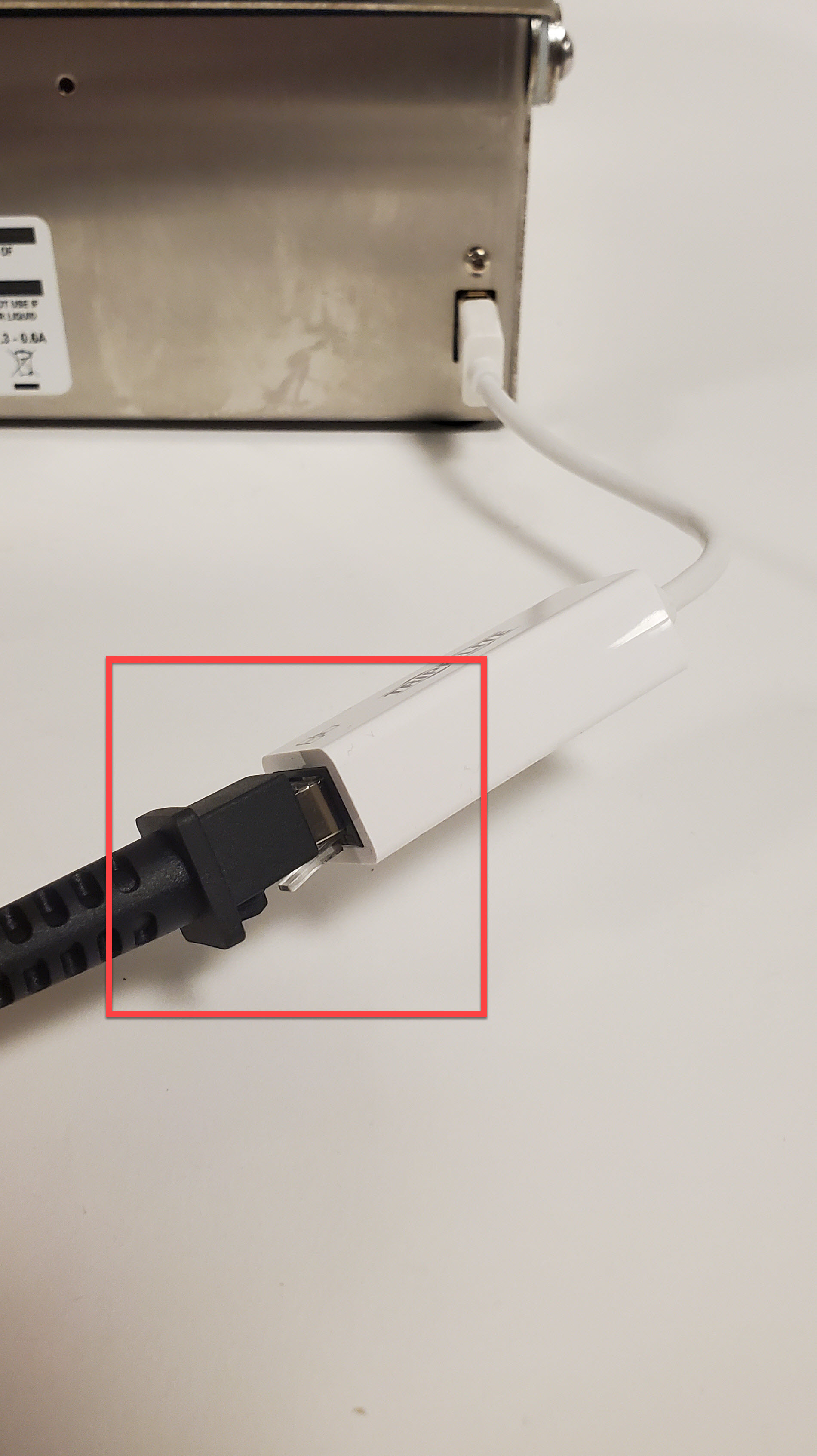
1. Pinch and remove the USB cap (black) from the USB port located on the back of the device.
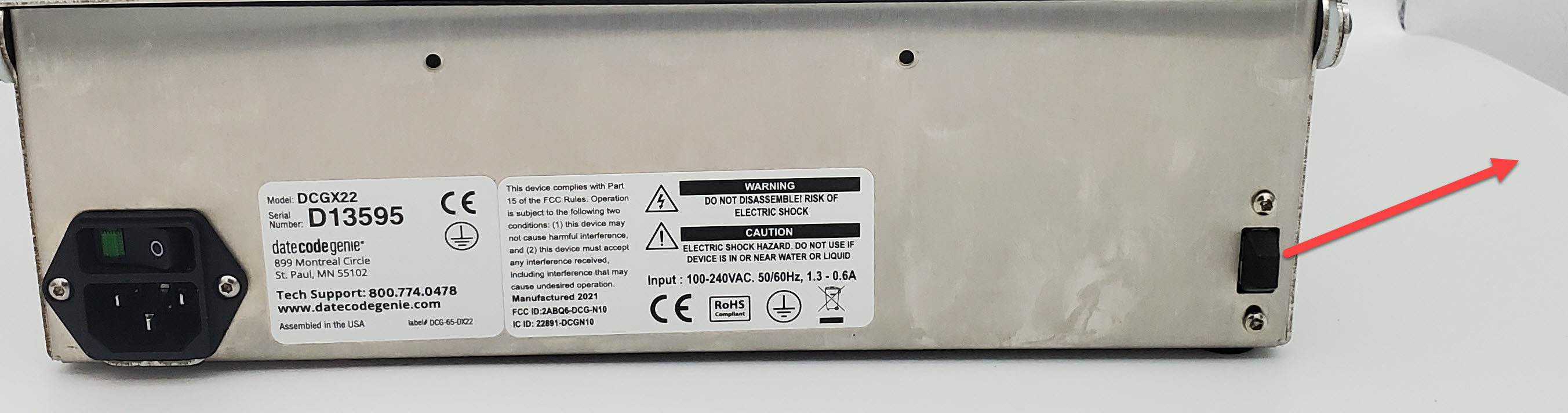
2. Plug in the USB Ethernet adapter into the USB port. Go to https://store.ncco.com/ to purchase USB Ethernet adapter (purchased separately).
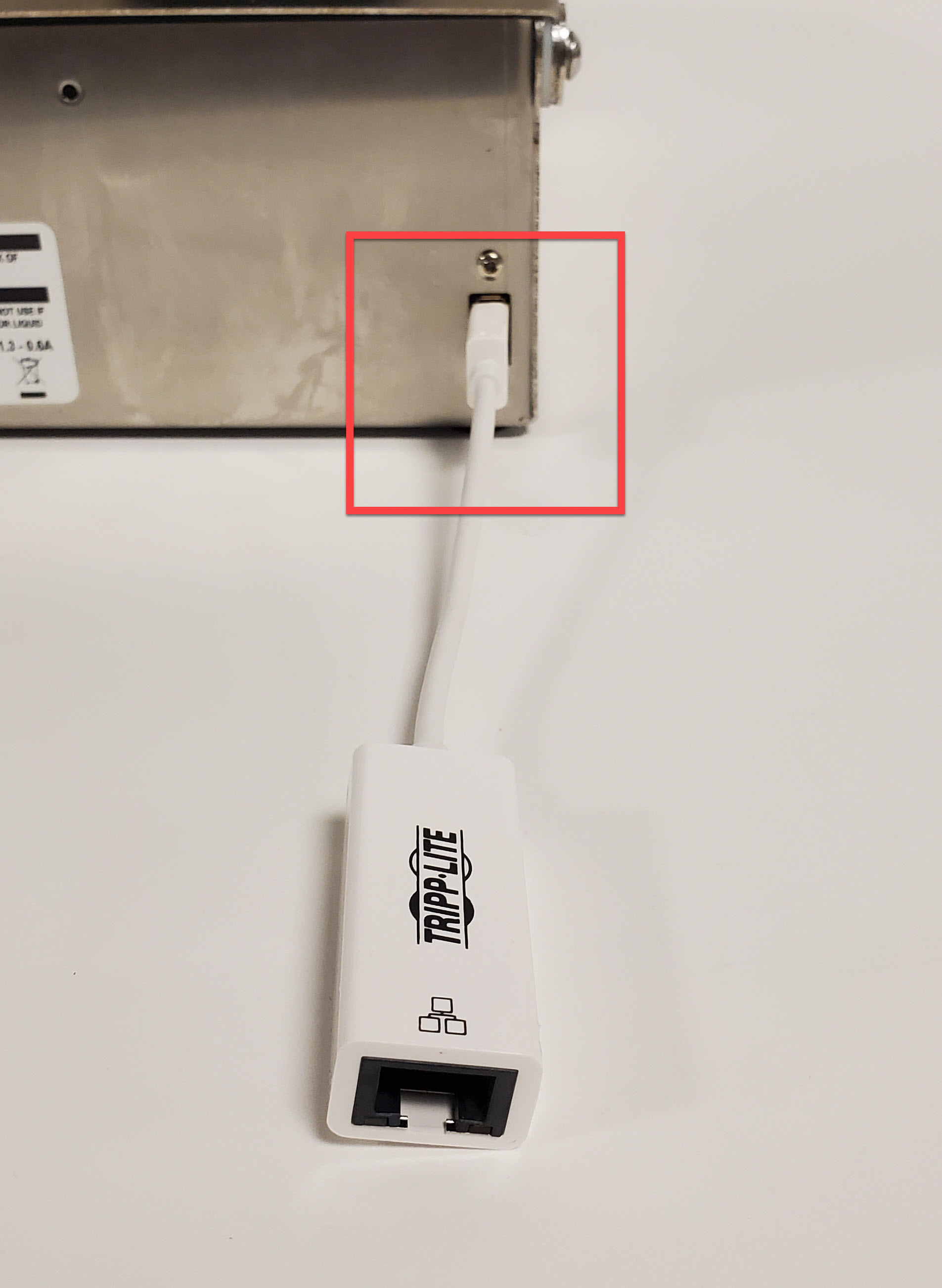
3. Pluseparg in the Ethernet cable into the Ethernet port of the adapter.
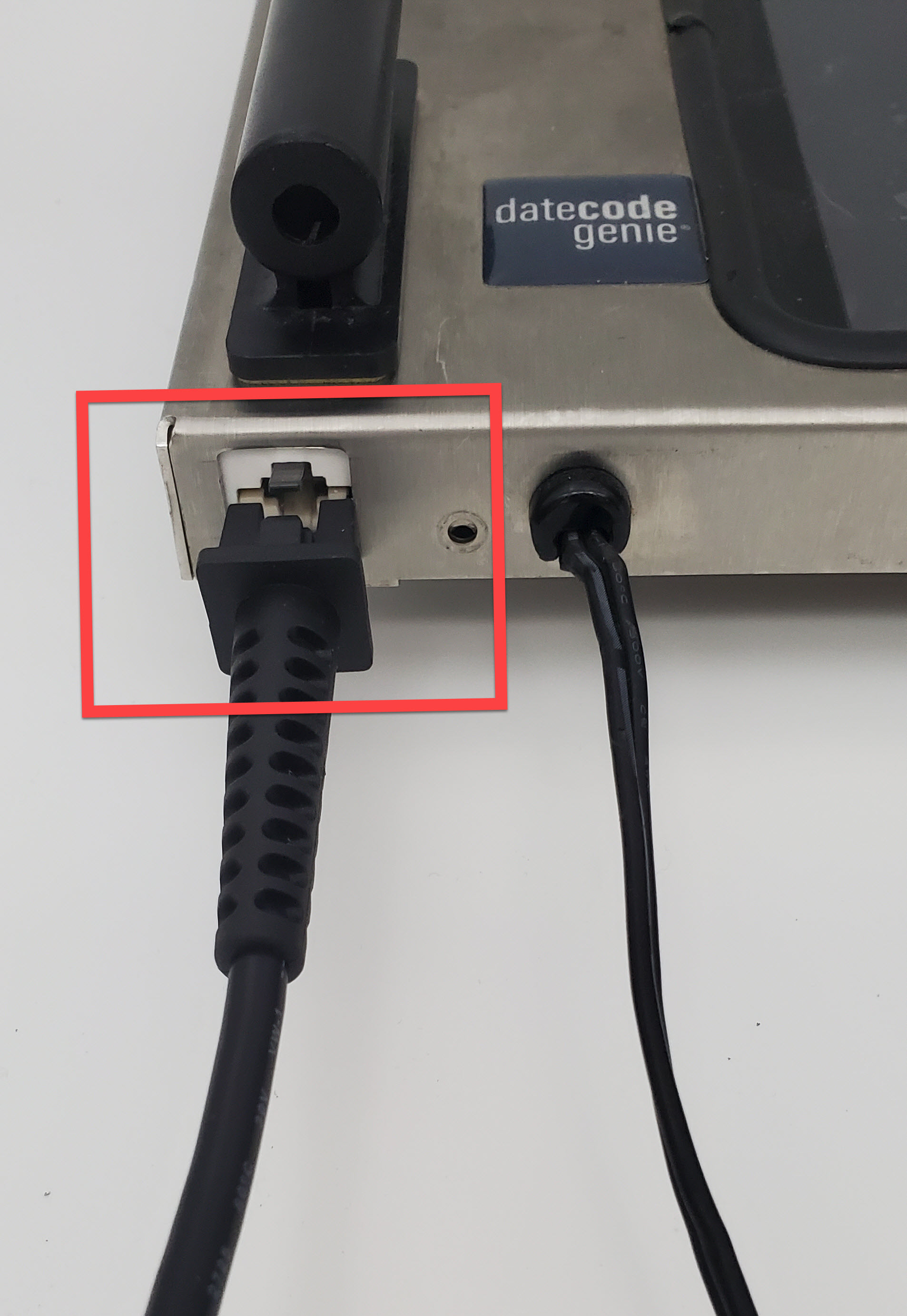
Fit Model Device (Model discontinued)
1. Plug in the Ethernet cable into the Ethernet port.
Frozen Tablet
Tablet screen is frozen or stuck and not responding to touch after tapping several buttons including home button on the screen with the stylus and finger.
Steps:
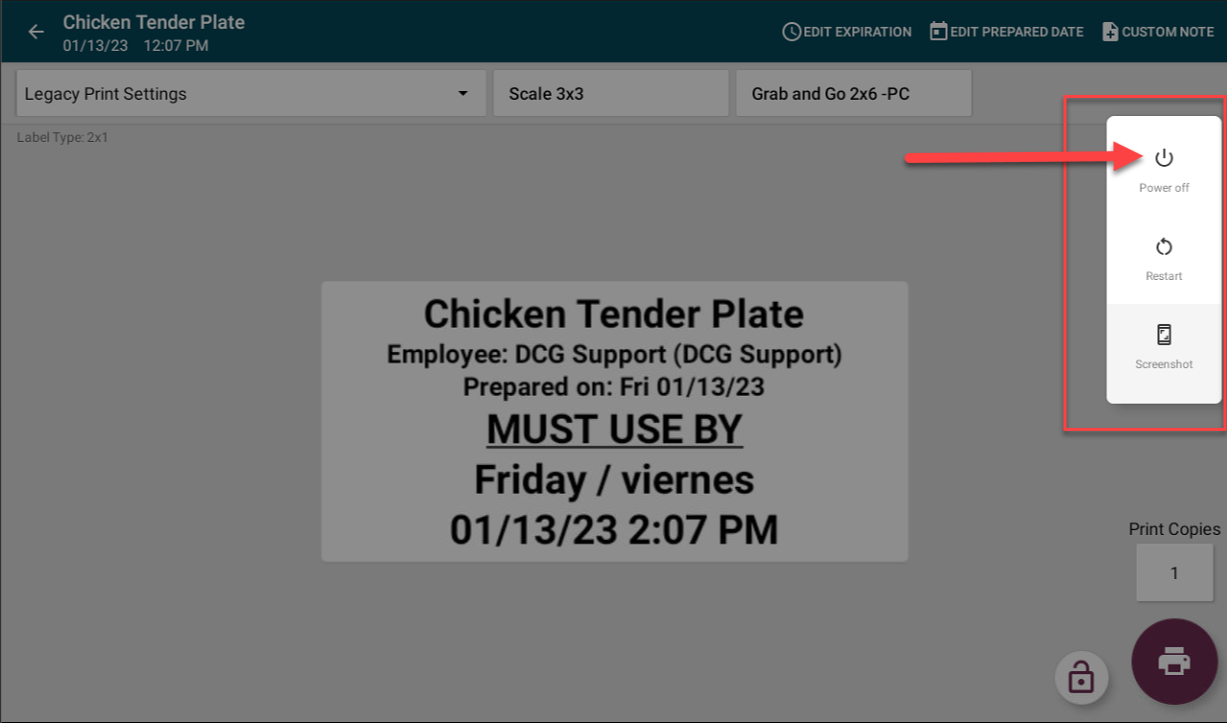
1. Press and hold the tablet power button releasing when options popup displays on right side of screen and tap Power Off button.
TIPS & TRICKS
If options popup does not display, press and hold the tablet power button continuously until screen is black. Tablet may restart automatically.
2. Press and hold tablet power button releasing when DateCodeGenie® image displays on screen.

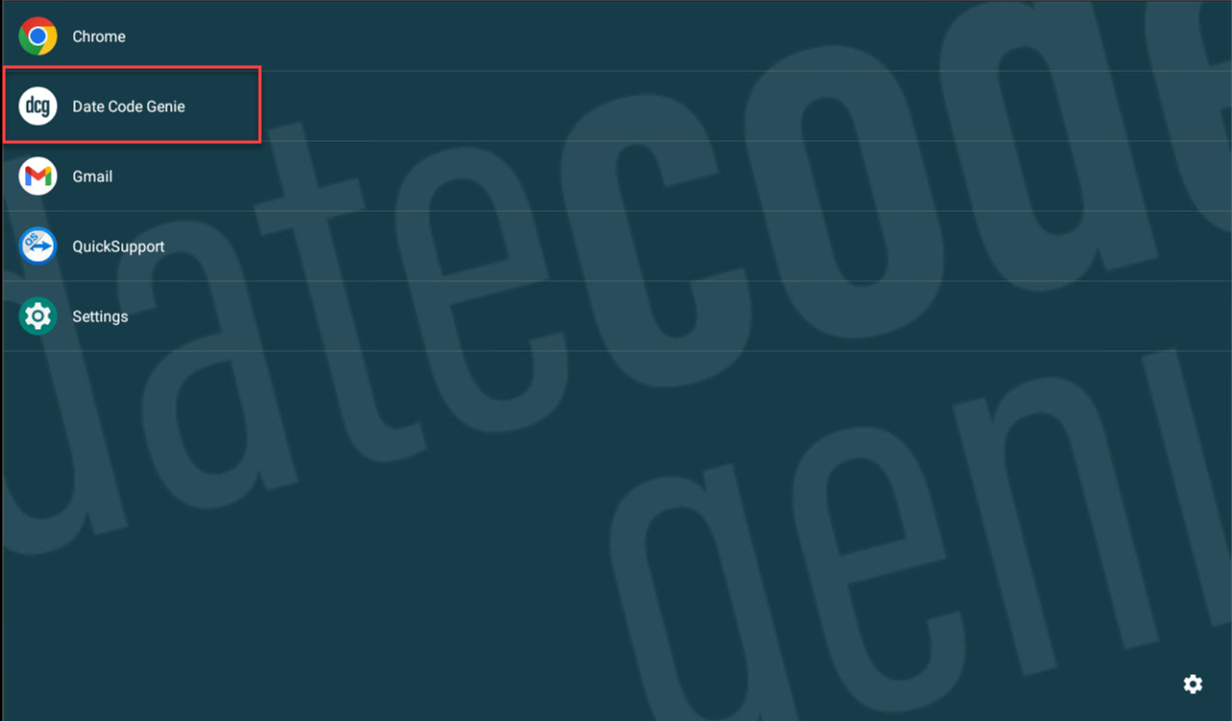
3. Tap the Date Code Genie app on the home screen to log in.
4. If the issue is not corrected, the tablet touch screen may have failed. See Tablet Touch Screen is Unresponsive for additional troubleshooting.
1. Close out of the DateCodeGenie app.
For closing apps, see your tablet manufacturer's information.
2. Check internet connection.
For managing internet connection, see your tablet manufacturer's information.

